
Shopify
Specific instructions for Shopify
Processing Shopify Sales in Reprtoir
Reprtoir can process sales generated through your Shopify store for any type of merchandise product. This includes physical formats such as CDs and vinyl, as well as digital downloads such as Tracks or Albums.
Shopify sales are processed through the Income module and linked to catalog Assets using the Shopify Variant ID.
How Reprtoir Matches Shopify Sales
Reprtoir links each Shopify sale to a Product or Asset using the Shopify Variant ID.
Matching Logic
| Shopify Field | Reprtoir Field | Description |
|---|---|---|
| Product variant ID | Shopify Variant ID | Used as the primary identifier for matching |
| Product Type | Asset Type | Determines whether the sale is linked to a Product, Track or Album |
Users are not required to link their Shopify products to Track or Album Assets. It is also possible to create and manage them as generic “Product” Assets in Reprtoir using the Shopify Variant ID as the identifier. In this case, sales will be processed as merchandise sales rather than music sales and will not generate royalties at the Track or Album level. While this approach is supported, it is generally recommended to link music products to the corresponding Track or Album Assets in order to ensure accurate royalty calculations and reporting.
Matching Behavior
If the "Product variant ID" matches an existing "Shopify Variant ID" identifier in your catalog:
The sale will be automatically linked to the corresponding Asset.
If no matching identifier exists:
The sale will be imported but will remain unmatched, and the income will generate a processing error that must be corrected before royalties can be calculated.
For this reason, it is essential to ensure that all Shopify products exist in Reprtoir with the correct Shopify Variant ID.
Product Types for Tracks and Albums in Shopify
By default, Reprtoir associates Shopify sales with Assets of type Product using the Shopify Variant ID as the identifier.
If you want Reprtoir to calculate royalties for music downloads or physical releases sold through Shopify, you must configure the correct product type in Shopify.
Set the "Product Organization" → Product Type field to either “Track” or “Album”.
This configuration allows Reprtoir to associate the corresponding sales with Track or Album Assets in your catalog instead of generic Products.
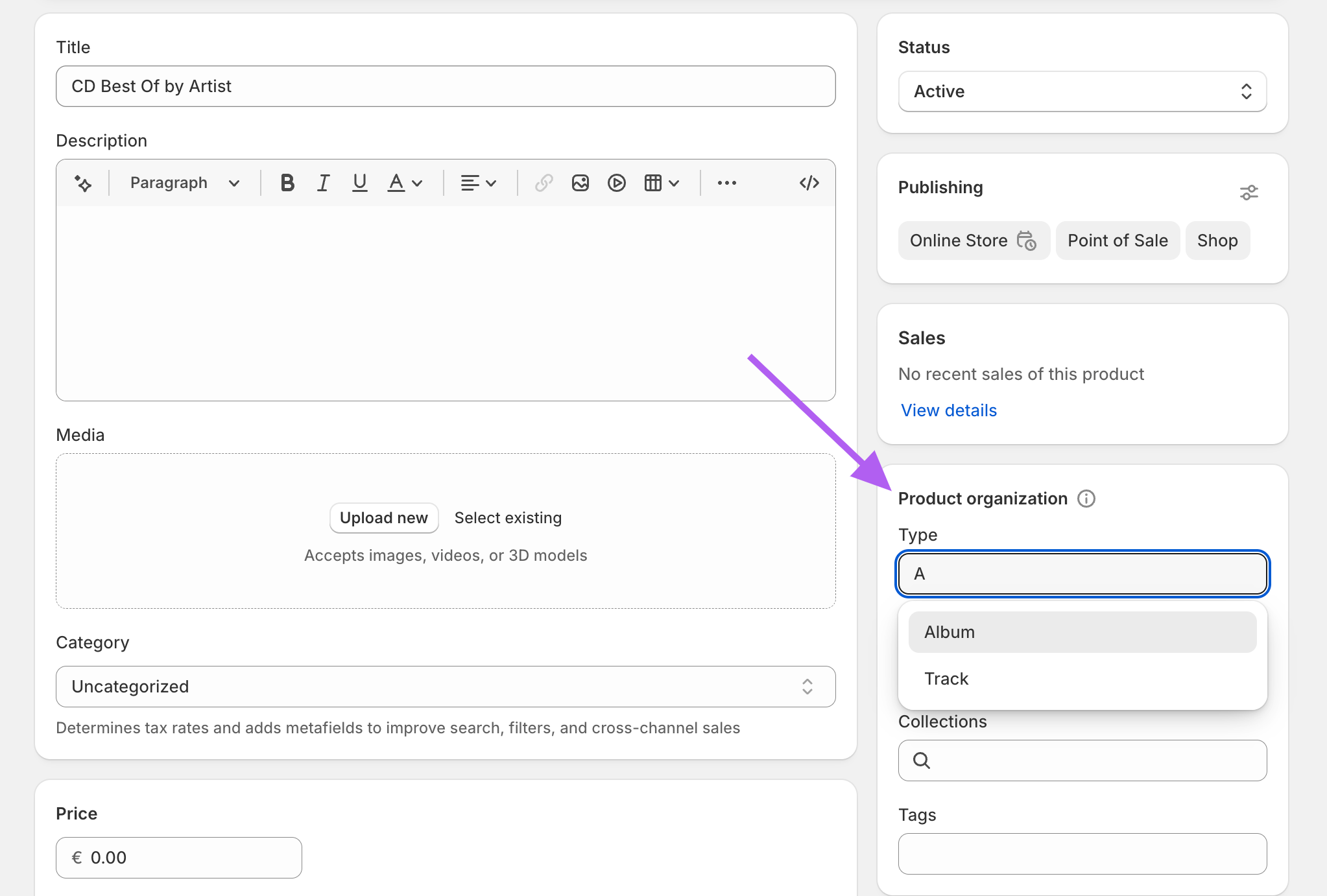
All other merchandise products can use any Product Type structure that fits your Shopify organization..
Exporting Sales from Shopify
Export a Sales Report
- In Shopify, open the left navigation menu.
- Go to “Analytics”.
- Click “Reports”.
- Click “New Exploration” in the top right corner.
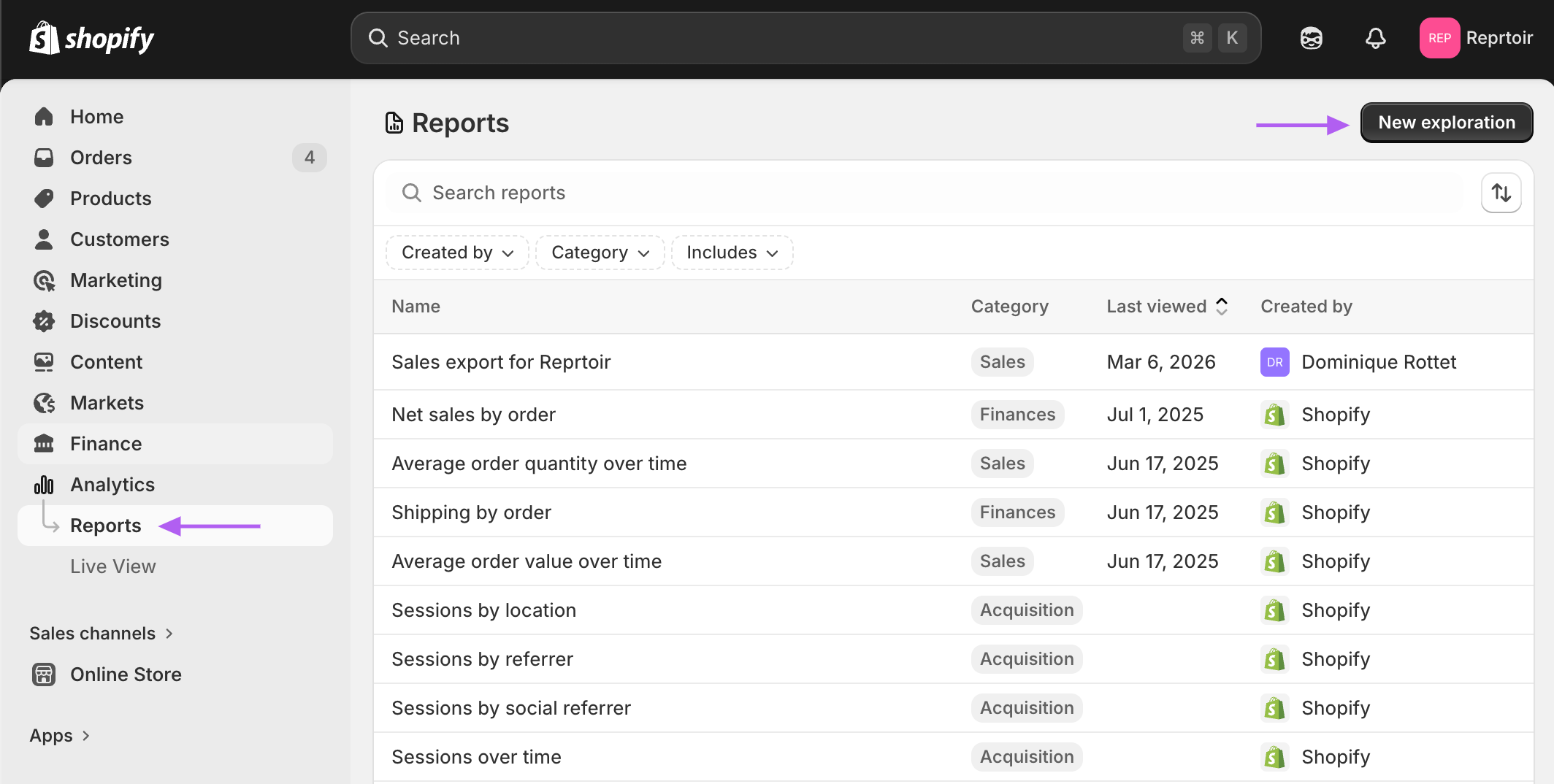
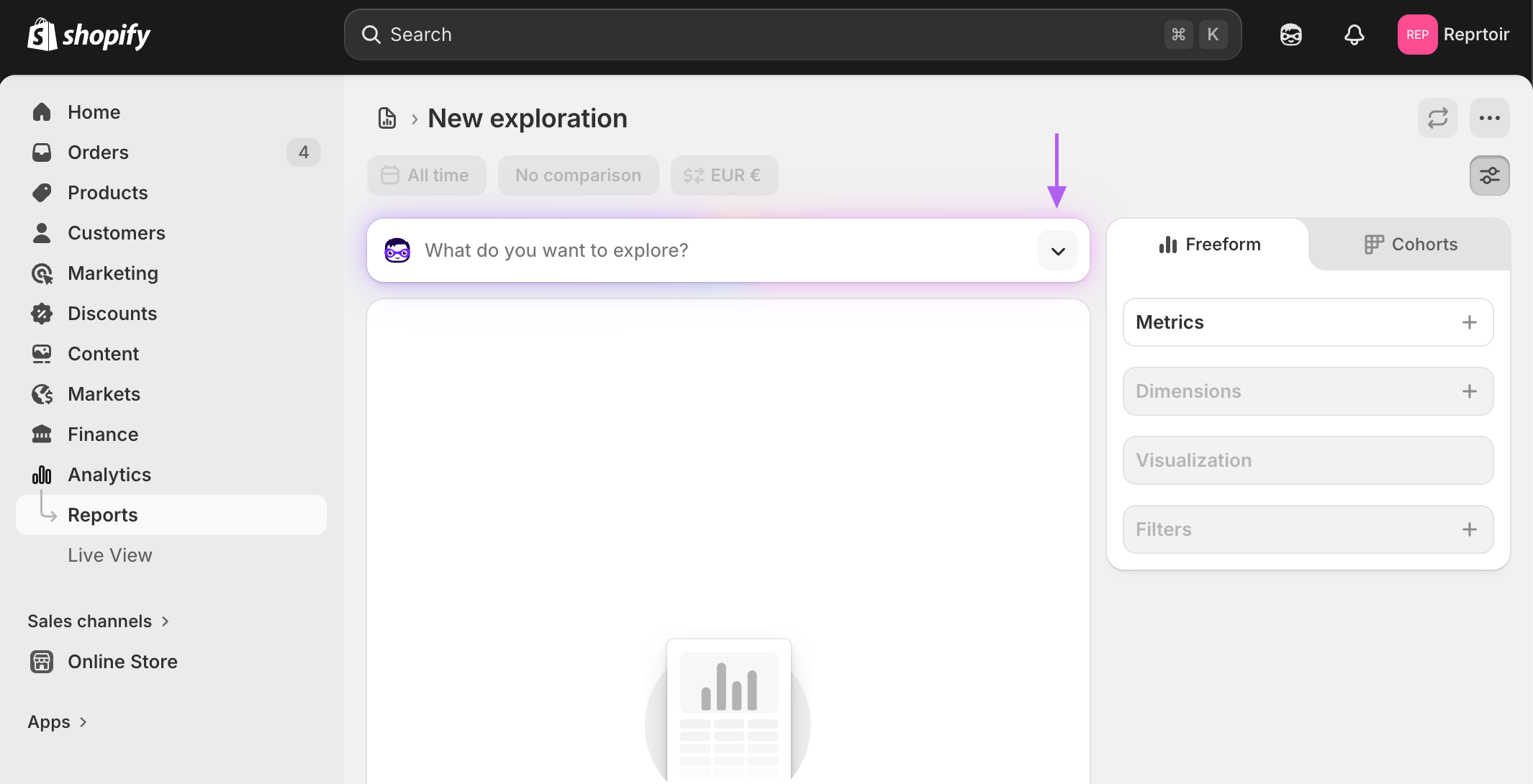
- Click the icon on the right side of the “What do you want to explore?” field.
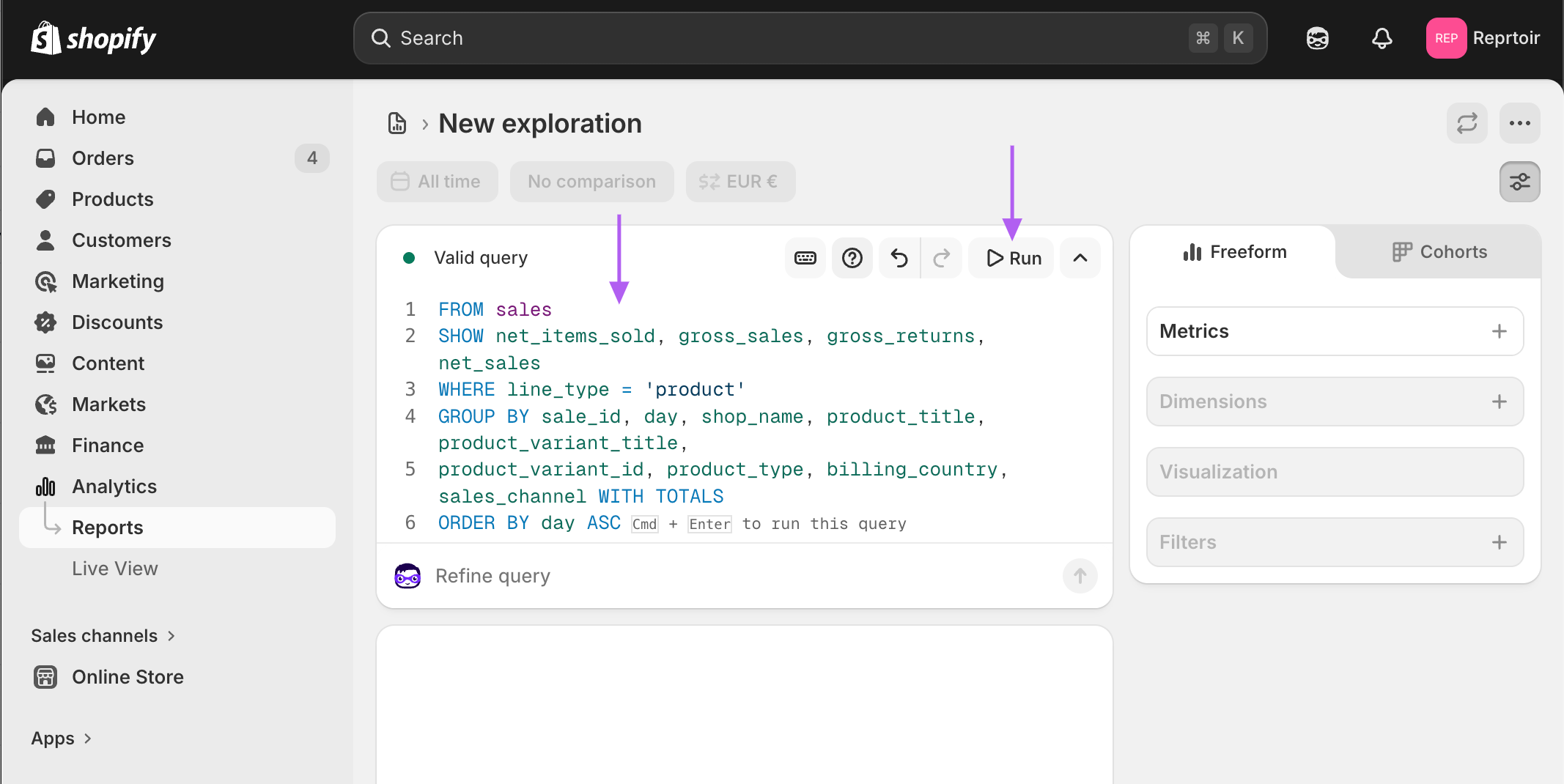
- Replace the text displayed in the editor with the following ShopifyQL query.
FROM sales
SHOW net_items_sold, gross_sales, gross_returns, net_sales
WHERE line_type = 'product'
GROUP BY sale_id, day, shop_name, product_title, product_variant_title,
product_variant_id, product_type, billing_country, sales_channel WITH TOTALS
ORDER BY day ASC-
If the editor displays “Valid query”, click “Run”.
This first query displays all your sales without date filtering.
Filter the Export Period
- Click the “All time” selector above the query editor.
- Choose the period you want to export, for example “Last month”.
- Click “Apply”.
- Click “Run” again.
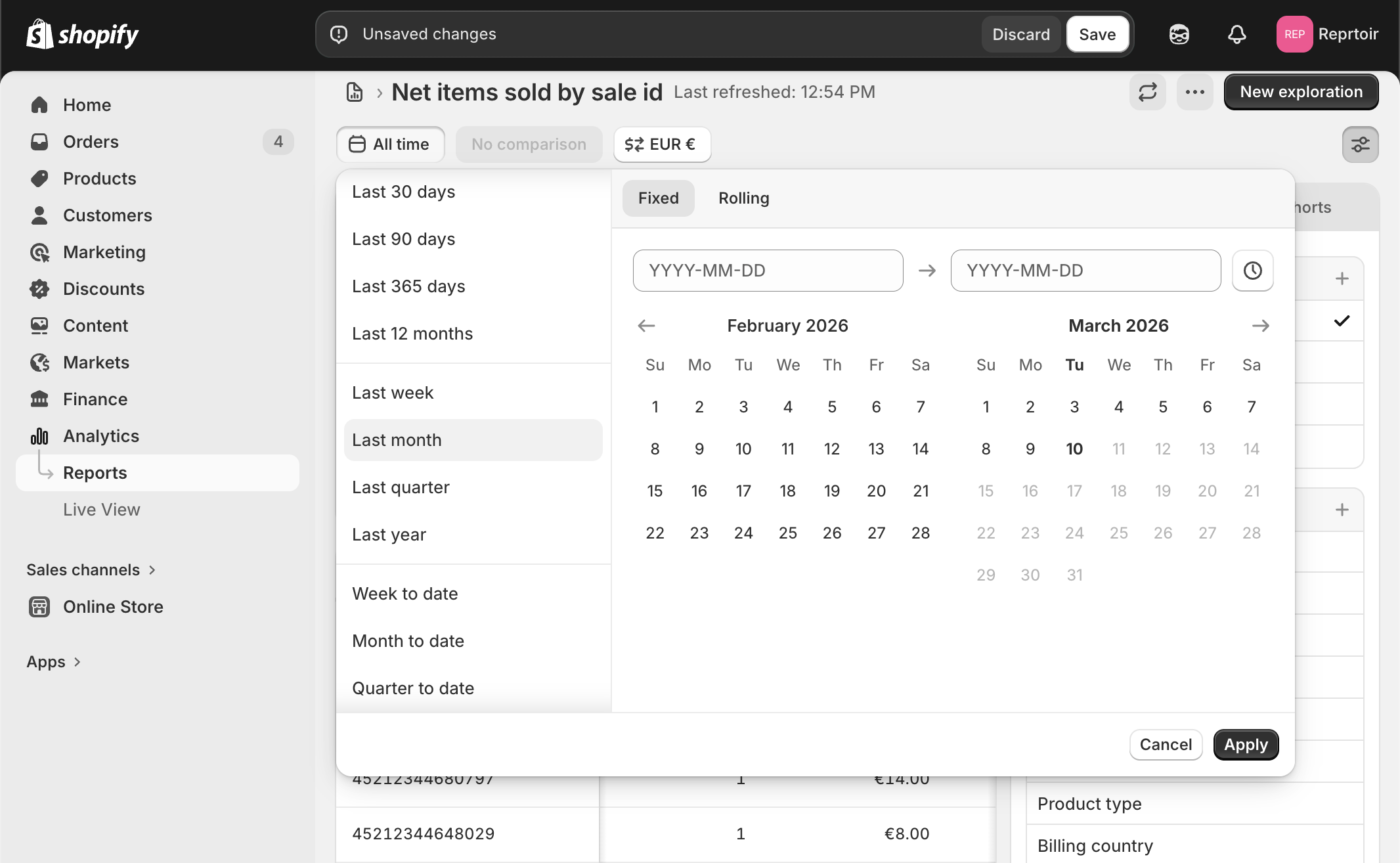
The report now displays the sales for the selected period.
Maintain a consistent export schedule and date range selection to avoid importing the same sales multiple times, which could lead to incorrect royalty calculations.
Export the Report
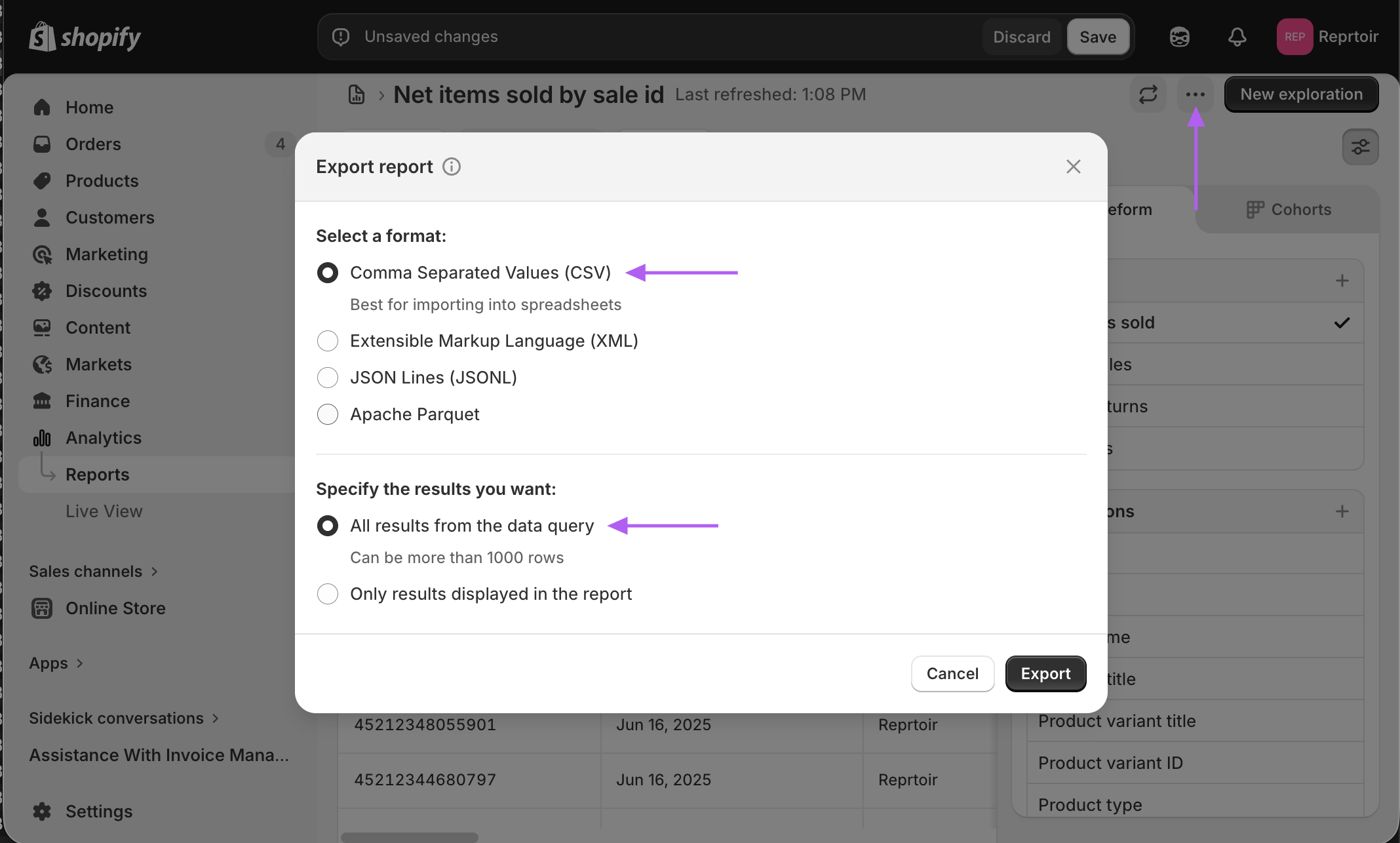
- Click the three horizontal dots next to “New Exploration”.
- Click “Export”.
- Select the CSV format.
- Ensure the export option is set to “All results”.
Saving the Report for Future Exports
Saving the exploration allows you to reuse the same report configuration for future exports.
- Click “Save” in the top right corner.
- Enter a name for the report.
- Click “Save”.
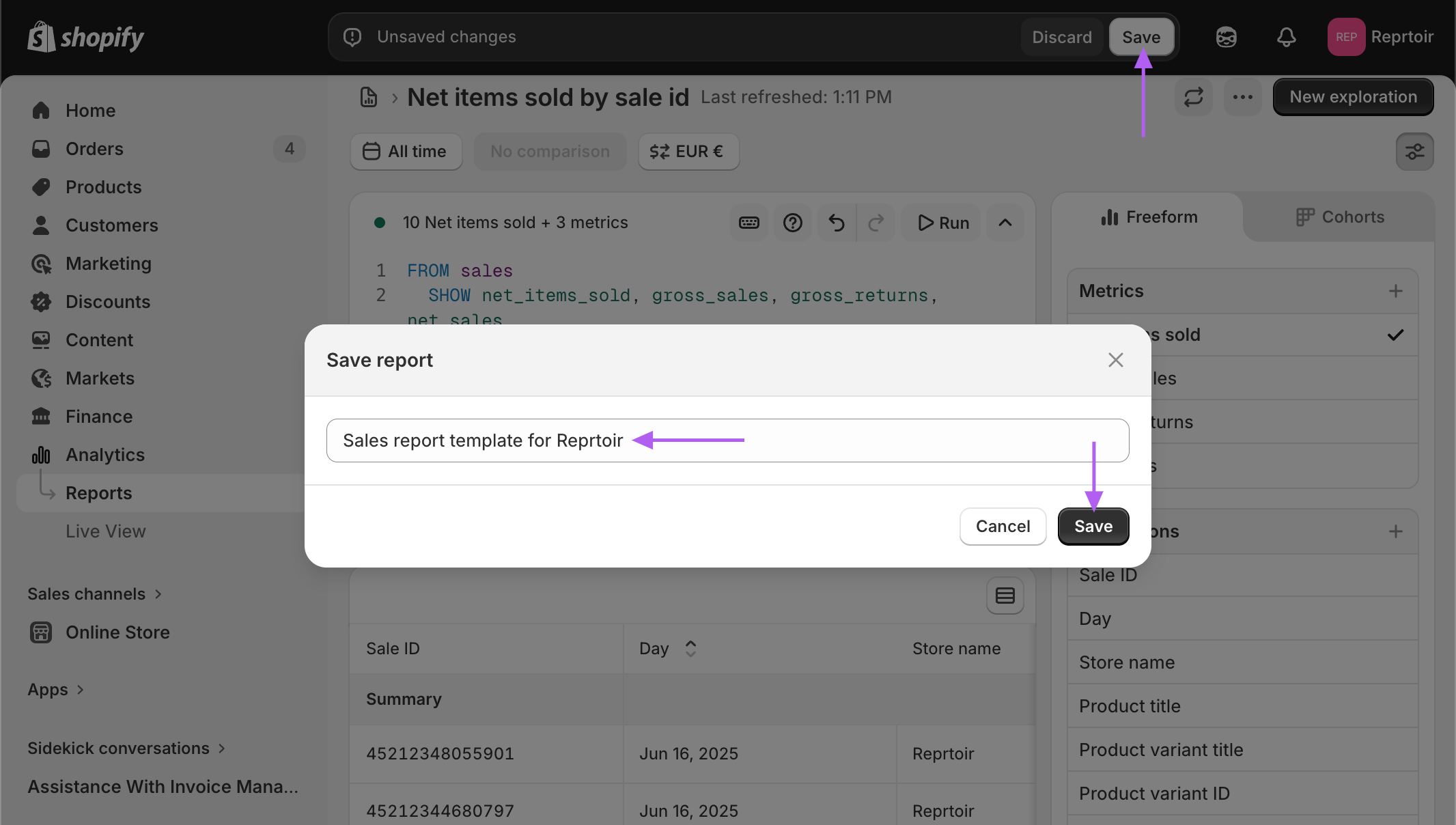
Once saved, the report can be reopened directly from the “Reports” list.
For future exports, you only need to update the export period before running the report again.
Importing Shopify Sales into Reprtoir
Prepare your catalog
Before importing sales, ensure that your catalog contains the corresponding Assets.
Products and Assets must contain the Shopify Variant ID as an identifier.
Products can be imported automatically using the “Shopify Stores” importer tool.
Import the sales report
- Open the navigation menu on the left.
- Click the “Royalty Accounting” icon.
- Open the “Incomes” list.
- Click “New Income” at the top right of the list.
- Select the “Shopify” template in the form.
- Upload the CSV report exported from Shopify.
The Shopify template automatically recognizes the file structure. No column mapping is required.
If the exported file structure does not match the expected template, the interface will display an error message.
Process the income
After the file is imported, follow the standard Reprtoir workflow to correct errors and process the income.
Updated 8 months ago